
Table of Contents
- Digital Business Cards: Create a Professional vCard QR Code with Spur QR
- What Is a Digital Business Card?
- What Is a vCard QR Code?
- Why Use a Digital Business Card Instead of Only a Printed Visiting Card?
- 1. Share More Professional Information
- 2. Make Contact Details Easier to Access
- 3. Connect Your Professional Profiles
- 4. Complement Your Existing Business Card
- 5. Reduce Dependence on Repeated Manual Sharing
- What Information Can You Include in a Spur QR Digital Business Card?
- Personal Information
- Company and Professional Details
- Contact Information
- Profile Photograph
- Personal or Professional Description
- Social Media Links
- How Does a Digital Business Card QR Code Work?
- How to Create a Digital Business Card with Spur QR
- Step 1: Open the vCard Generator
- Step 2: Choose a Suitable Card Design
- Step 3: Enter Your Personal Information
- Step 4: Add Company and Contact Details
- Step 5: Add a Profile Photo and Description
- Step 6: Add Your Social Links
- Step 7: Customize the Design
- Step 8: Generate and Test Your QR Code
- Where Can You Use a Digital Business Card?
- Business Meetings
- Conferences and Networking Events
- Sales and Business Development
- Freelancers and Consultants
- Small Businesses
- Email Signatures
- Printed Visiting Cards and Brochures
- Digital Business Cards for Personal Branding
- Can You Use a Digital Business Card Alongside a Printed Card?
- What Should You Check Before Sharing Your vCard QR Code?
- Why Choose Spur QR for a vCard QR Code?
- Frequently Asked Questions About vCard QR Codes
- 1. What is a vCard QR code?
- 2. What is the difference between a digital business card and a traditional visiting card?
- 3. What information can I include in a digital business card?
- 4. Can I share my digital business card without printing it?
- 5. Can I use a vCard QR code on a printed visiting card?
- 6. Can people save my contact information by scanning the QR code?
- 7. Can I include my social media profiles?
- 8. Is a digital business card useful for freelancers?
- 9. Should I test my QR code before sharing it?
- 10. Where can I create a vCard QR code with Spur QR?
- Create Your Digital Business Card Today
Digital Business Cards: Create a Professional vCard QR Code with Spur QR
In today's digital world, sharing professional contact information should be simple, convenient, and accessible. Whether you are a business owner, entrepreneur, freelancer, salesperson, consultant, or working professional, making it easy for people to connect with you is an important part of building professional relationships.
Traditional visiting cards remain useful, but they have limitations. Contact details printed on a physical card cannot be updated after printing, and recipients may need to manually enter the information into their smartphones.
A digital business card offers another way to share your professional identity. By using a vCard QR code, you can provide access to your contact information through a scannable code, helping people find and save your details more conveniently.
Spur QR provides a digital business card solution that helps you bring your professional contact information together in one accessible place.
In this guide, we explain what a vCard QR code is, how digital business cards work, the information you can include, where to use them, and how to create a digital business card with Spur QR.
What Is a Digital Business Card?
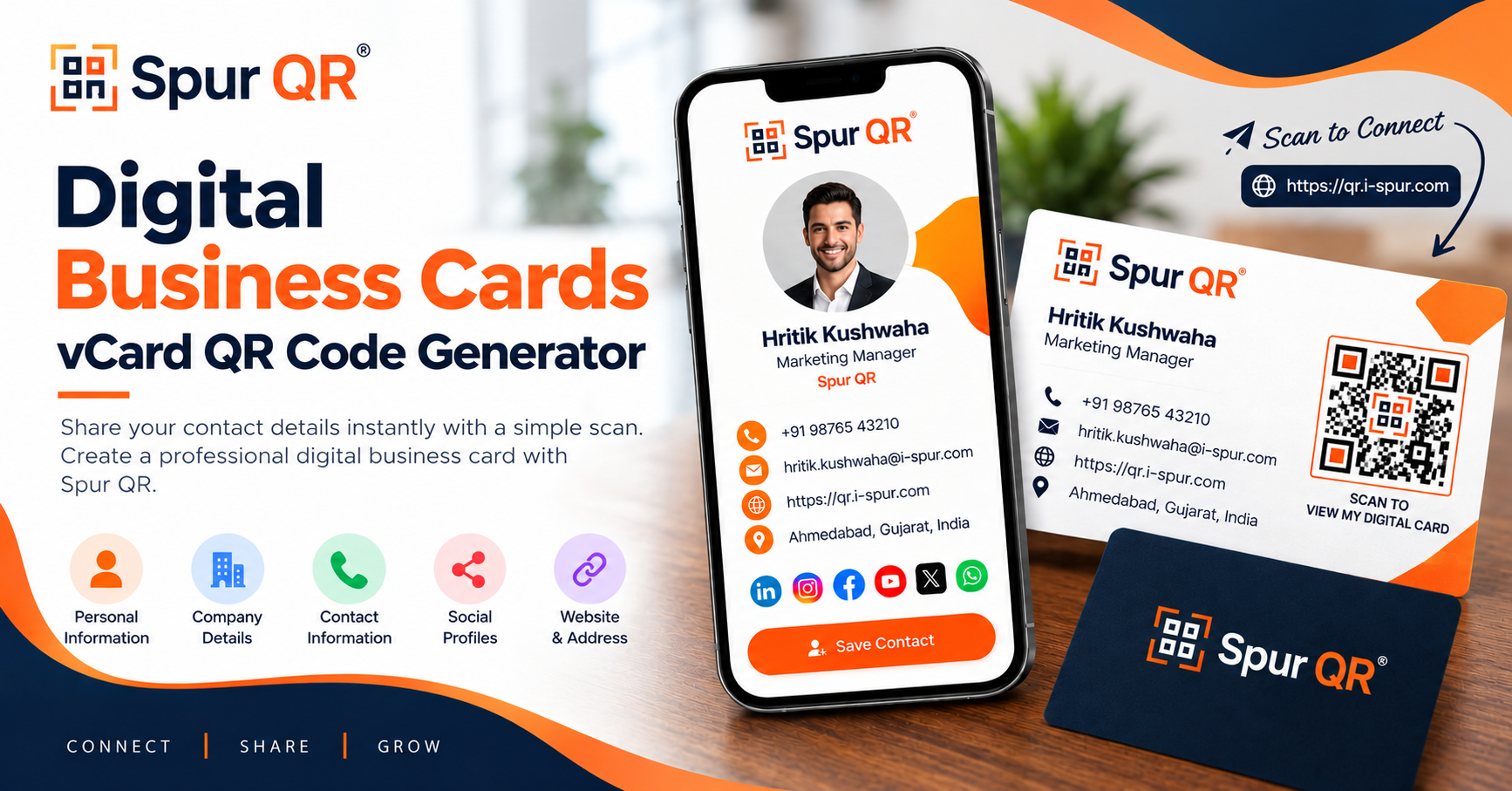
A digital business card is an electronic version of a traditional visiting card. It allows you to present your professional identity and contact information digitally instead of relying exclusively on printed cards.
Depending on the information included in your profile, a digital business card can display details such as:
- Full name
- Company or organization
- Job title or professional designation
- Phone number
- Email address
- Website
- Business address
- Personal description
- Profile photograph
- Social media profiles
A digital business card makes these details accessible through a digital profile rather than requiring someone to type every piece of information manually.
For professionals who regularly meet clients, attend networking events, communicate with customers, or promote their services, this can provide a more convenient way to share contact information.
What Is a vCard QR Code?
A vCard QR code is a QR code associated with digital contact information. When someone scans the code, their device can access the contact information or digital business card associated with it.
Depending on how the QR code is generated and how the destination is configured, the recipient may be able to view the contact profile and save the information to their device.
For example, a business owner meeting a potential customer can display a vCard QR code on a visiting card, brochure, presentation, or smartphone.
Instead of asking the customer to manually type a name, telephone number, email address, and website, the business owner can provide a convenient way to access those details.
The result is a more streamlined contact-sharing experience.
Why Use a Digital Business Card Instead of Only a Printed Visiting Card?
Printed visiting cards are still useful for face-to-face meetings, exhibitions, conferences, and business introductions. However, they are limited by the amount of information that can comfortably fit on a physical card.
A digital business card offers additional flexibility.
1. Share More Professional Information
A physical visiting card usually contains a name, designation, phone number, email address, and company details.
A digital business card can bring together additional information, such as a website, business address, personal description, profile photograph, and supported social media links.
This gives people a broader view of your professional identity.
2. Make Contact Details Easier to Access
When you hand someone a printed card, that person may need to enter your contact information manually.
A vCard QR code provides a convenient alternative. Recipients can scan the code, access the digital profile, and save the contact information where supported by their device and the profile format.
This helps reduce manual data entry and the possibility of typing errors.
3. Connect Your Professional Profiles
Professionals often maintain several online profiles for different purposes.
For example, you might use LinkedIn for professional networking, a website to showcase your services, Instagram to share visual content, and WhatsApp for customer communication.
A digital business card can bring supported profile links together, making them easier for people to discover.
4. Complement Your Existing Business Card
You do not have to stop using printed visiting cards to benefit from digital business cards.
Instead, you can add a vCard QR code to your printed card. This combines the familiarity of a physical visiting card with the convenience of accessing information digitally.
You can also display your QR code on appropriate digital and printed business materials.
5. Reduce Dependence on Repeated Manual Sharing
If you frequently share the same professional details, a digital business card provides a reusable way to present your information.
You can direct people to your digital profile instead of repeatedly typing or sending each contact detail separately.
What Information Can You Include in a Spur QR Digital Business Card?
A useful digital business card should provide enough information for someone to identify you and understand how to contact you.
Spur QR's vCard generator provides fields for personal information, company information, contact details, addresses, descriptions, profile photographs, and social links.
Depending on your requirements, you can organize your professional information into the following sections.
Personal Information
Your name is one of the most important elements of your digital business card.
Use your professional name so that customers, colleagues, and business contacts can identify you easily.
Company and Professional Details
If you represent a company or work in a particular professional role, include the relevant company name and job title.
These details help recipients understand your professional responsibilities and the organization you represent.
Contact Information
Contact information makes it easier for people to reach you after an introduction.
Relevant details may include:
- Phone number
- Email address
- Website
- Business address
Include the information that is appropriate for your professional or business use case.
Profile Photograph
A profile photograph can help people associate your digital business card with the person they met.
For individual professionals, consultants, freelancers, and business owners, this can make the profile more recognizable.
Personal or Professional Description
A short description can explain your role, services, specialization, or business activities.
For example, a freelance developer might describe their work in web development and automation, while a business consultant might summarize their consulting services.
Keep the description clear and relevant to your audience.
Social Media Links
Spur QR's published digital business card information identifies support for social links including Instagram, Facebook, LinkedIn, YouTube, Twitter/X, WhatsApp, and Snapchat.
These links can help people find your professional or business profiles without searching for each account individually.
Only include profiles that you want to share publicly.
How Does a Digital Business Card QR Code Work?
A QR code provides a scannable connection between a physical or digital display and its associated information.
The general process is straightforward.
Step 1: Create Your Digital Business Card
Enter the personal, company, and contact information you want to share.
Step 2: Generate Your QR Code
Use the vCard QR code generator to create a QR code associated with your digital business card.
Step 3: Display or Share the QR Code
Place the QR code on suitable business materials or share it digitally.
Step 4: Let Others Scan the Code
A recipient scans the QR code using a compatible smartphone camera or QR scanner.
Step 5: Access the Contact Information
The recipient accesses the information associated with the QR code. Depending on the implementation, the recipient can view the profile and save the contact details.
This process makes professional contact information more accessible during meetings, events, and everyday business communication.
How to Create a Digital Business Card with Spur QR
Spur QR provides a vCard solution for creating a digital business card with personal, company, contact, address, description, profile photo, and social information.
You can use the following general workflow.
Step 1: Open the vCard Generator
Visit the Spur QR vCard page:
Open the page and review the available form fields and options.
Step 2: Choose a Suitable Card Design
If the available interface provides card templates, select a design that suits your professional identity or brand.
Choose a clean layout that makes your name and contact information easy to read.
Step 3: Enter Your Personal Information
Fill in the available personal information fields.
Check the spelling of your name and verify that the information matches the details you want to share.
Step 4: Add Company and Contact Details
Enter your company information, professional designation, phone number, email address, website, and address where the corresponding fields are available.
Do not add unnecessary information simply to fill every field.
Step 5: Add a Profile Photo and Description
If the generator provides these options, upload an appropriate profile photograph and add a concise professional description.
Use a clear photograph and a description that reflects your actual role or services.
Step 6: Add Your Social Links
Enter the URLs of the social profiles you want to share.
Double-check each link to ensure that it directs recipients to the correct account.
Step 7: Customize the Design
If the available interface provides customization options, adjust the template, font, accent color, or other supported design elements.
Maintain sufficient contrast and readability so that the information remains easy to understand.
Step 8: Generate and Test Your QR Code
Generate the QR code using the available controls.
Before printing or distributing it, scan the code using a smartphone and verify that it opens the expected destination.
Check that the contact information is accurate and that the profile works on a mobile device.
Important: The exact button names, required fields, available templates, and download options may change with the live interface. Follow the controls actually displayed on the Spur QR vCard page.
Where Can You Use a Digital Business Card?
A digital business card can be useful in many professional situations.
Business Meetings
During a client meeting, you can share your contact information without requiring the other person to manually type every detail.
Conferences and Networking Events
Conferences, trade shows, workshops, and industry events often involve meeting many people in a short period.
A vCard QR code provides a convenient way to share professional information during these interactions.
Sales and Business Development
Sales professionals frequently communicate with prospects, customers, and business partners.
A digital business card can help them share contact details and relevant professional links during introductions and follow-up conversations.
Freelancers and Consultants
Freelancers and consultants can use a digital business card to present their contact information alongside their website and supported professional profiles.
This can be useful when introducing services to potential clients.
Small Businesses
Business owners can share their contact information through suitable printed materials, digital presentations, or other professional communication channels.
A digital business card can complement a company's existing branding and communication methods.
Email Signatures
Where appropriate, you can include a vCard QR code in a digital signature or other communication material.
Make sure the code is sufficiently large and clear to scan, especially when it is displayed on a computer screen.
Printed Visiting Cards and Brochures
Adding a QR code to a printed visiting card or brochure can provide a bridge between printed information and your digital contact profile.
Always test a printed sample before producing large quantities.
Digital Business Cards for Personal Branding
Your digital business card can contribute to the way people perceive your professional identity.
A well-organized profile makes it easier for people to understand who you are, what you do, and how they can contact you.
Consistent use of your name, company identity, profile photograph, website, and relevant social links can also help establish a recognizable professional presence.
When creating your card, focus on three principles:
Clarity: Make your name and essential contact details easy to find.
Consistency: Use professional information and branding that match your other business materials.
Relevance: Include details that help your intended audience understand your role and contact you.
A digital business card does not replace the need for strong professional communication, but it can make sharing your information more convenient.
Can You Use a Digital Business Card Alongside a Printed Card?
Yes. Digital and printed business cards can complement one another.
A printed visiting card can provide a physical reminder of a meeting, while a QR code can give the recipient access to your digital contact information.
This approach is useful when you attend events where printed materials remain common but you also want to make digital contact sharing available.
For example, you could place a QR code next to a short instruction such as "Scan to View My Contact Details."
Before distributing the card, test the QR code on different smartphones and confirm that the code is large enough to scan reliably.
What Should You Check Before Sharing Your vCard QR Code?
Before publishing or distributing your digital business card, review the following points.
Verify your contact information. Check phone numbers, email addresses, company details, and website URLs.
Test the QR code. Scan it and confirm that it opens the intended profile or destination.
Check mobile readability. Ensure that the profile displays correctly on a smartphone.
Review social links. Confirm that the links open the correct public profiles.
Protect private information. Share only the contact information that you are comfortable making accessible to recipients.
Test printed versions. If the QR code will appear on a visiting card or brochure, check its readability at the final printed size.
Review your design. Ensure that the code has sufficient contrast and that decorative elements do not interfere with scanning.
These simple checks help create a more reliable experience for the people receiving your contact information.
Why Choose Spur QR for a vCard QR Code?
Spur QR provides a QR code generation platform with different QR solutions for business and personal use.
Its digital business card solution focuses on bringing professional contact information into a digital profile that can be accessed through a vCard QR code.
Relevant capabilities described in Spur QR's published information include:
- Personal information fields
- Company information
- Contact details
- Address information
- Personal descriptions
- Profile photographs
- Social profile links
- Card templates and supported design customization
The appropriate features and options depend on the controls available in the current generator.
For professionals who regularly exchange contact information, this type of solution can provide a convenient way to share a digital professional identity.
Frequently Asked Questions About vCard QR Codes
1. What is a vCard QR code?
A vCard QR code is a QR code associated with digital contact information. Scanning it allows a recipient to access the associated contact profile or information, depending on how the code is configured.
2. What is the difference between a digital business card and a traditional visiting card?
A traditional visiting card presents information on a physical card. A digital business card provides contact information electronically and may include additional details such as a website, professional description, photograph, and social links.
3. What information can I include in a digital business card?
Depending on the generator, you can include your name, company, designation, phone number, email address, website, address, description, profile photograph, and supported social media links.
4. Can I share my digital business card without printing it?
Yes. You can share a digital business card through suitable digital channels, such as a message or email, provided you have a shareable profile link or QR code.
5. Can I use a vCard QR code on a printed visiting card?
Yes. You can print the QR code on a visiting card, brochure, or other suitable business material. Test the printed code before distributing it.
6. Can people save my contact information by scanning the QR code?
The recipient may be able to save the contact information, depending on the profile format, destination, device, and available functionality. Test the generated code to confirm the actual experience.
7. Can I include my social media profiles?
Spur QR's published vCard information identifies social links including Instagram, Facebook, LinkedIn, YouTube, Twitter/X, WhatsApp, and Snapchat. Check the current generator for the available fields.
8. Is a digital business card useful for freelancers?
Yes. Freelancers can use a digital business card to share their professional contact information, website, and supported social profiles with potential clients.
9. Should I test my QR code before sharing it?
Yes. Scan the generated code and confirm that it opens the correct destination. Check your contact details and verify that the profile works on a mobile device.
10. Where can I create a vCard QR code with Spur QR?
You can visit the Spur QR vCard page at:
Review the available fields and follow the instructions displayed by the generator.
Create Your Digital Business Card Today
Professional networking starts with making it easy for people to connect with you.
A digital business card gives you another way to present your professional identity, share contact information, and provide access to relevant online profiles.
Whether you are a business owner, freelancer, consultant, salesperson, or working professional, a vCard QR code can help simplify how you share your details.
Explore the Spur QR vCard generator, enter your information, review the available design options, and test your QR code before sharing it.
Create your digital business card with Spur QR:
Make your professional contact information easier to access with a digital business card designed for modern networking.